
Every day, over 300 million people join virtual meetings on Zoom, Microsoft Teams, or Google Meet. Video calls are now a normal part of work and study. But looking professional on camera is not just about wearing a nice shirt. Even small mistakes—like bad lighting or messy backgrounds—can hurt your image. In today’s world, your video presence often shapes how others see your skills and confidence.
This guide gives you clear steps to look your best on any video call. You’ll learn how to set up your space, dress smart, use technology, and avoid common errors. With these practical tips, you’ll feel more confident and make a strong impression every time.
Choose The Right Location
Your surroundings say a lot about you. Choose a space that is quiet, private, and free from distractions. Avoid sitting in busy rooms where people or pets might walk by. If you work from home, a corner with a blank wall or bookshelf works well.
The background should be clean and tidy—remove laundry, dishes, or anything unprofessional.
Pro Tip
Check what’s behind you using your camera preview before joining. Sometimes, things you don’t notice in real life look much more obvious on video.
Pay Attention To Lighting
Lighting can make or break your appearance. Natural light is best, so sit facing a window if possible. Avoid having bright light behind you, like a window, because it will make your face look dark. If you don’t have good natural light, use a simple desk lamp in front of you.
Soft, even light works better than harsh, direct beams.
| Lighting Position | Effect on Appearance |
|---|---|
| Front (natural or lamp) | Bright, clear, professional |
| Back (window behind) | Face in shadow, unprofessional |
| Overhead (ceiling light) | Shadows on face, tired look |
Dress For The Occasion
Dress as you would for an in-person meeting at your office or school. Simple, solid colors look best on camera. Avoid busy patterns and bright white, as they can cause glare. A clean shirt or blouse is usually enough, but check if your company or event has a dress code.
Essential Vs Optional Clothing
| Essential | Optional |
|---|---|
| Solid, clean shirt | Jacket or blazer |
| Neat hairstyle | Tie or scarf |
| No hats or sunglasses | Subtle jewelry |
Wearing full professional clothes (not just on top) is smart. You may need to stand up unexpectedly.
Position Your Camera Correctly
Camera angle changes how others see you. Place your camera at eye level. If you use a laptop, stack some books under it until the camera is level with your eyes. Don’t look down at the camera—this can feel distant or unconfident.
Sit about an arm’s length from the camera, so your head and shoulders are in the frame.
Common Mistake
Sitting too close can make your face look large and awkward, while sitting too far makes you look small and less engaged.
Check Your Audio
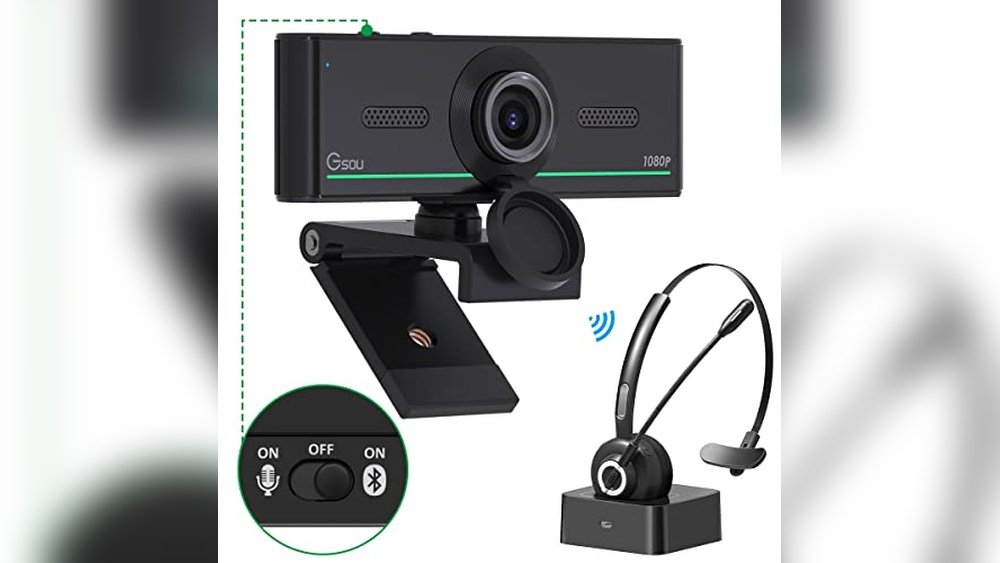
Poor audio can ruin even the best-looking call. Use headphones or a headset if possible—they reduce background noise and echo. Test your microphone before important calls. If your voice sounds quiet or muffled, try a different microphone or move closer.
Mute yourself when not speaking to avoid distracting others.
Tip
Most platforms let you test audio before joining. Record a short clip and listen to it.
Keep Your Background Simple
A plain wall or neat bookshelf is best. If you must use a virtual background, pick a subtle, professional image. Avoid backgrounds with bright colors, movement, or funny pictures. A messy or personal background can distract from your message.

Credit: studious.org.uk
Manage Distractions
Turn off notifications on your computer and phone. Tell family or roommates when you’ll be on a call. Close extra apps and windows. If something does interrupt (like a child or pet), handle it calmly and quickly.
Look At The Camera
Eye contact is important, even on video. Look at the camera when you speak—not at your own image. This helps you seem more confident and connected. If you find this hard, move your video window close to the camera.
Mind Your Body Language
Sit up straight, relax your shoulders, and nod or smile when appropriate. Avoid fidgeting, eating, or checking your phone. Small movements can look bigger on camera.
Example
Nodding while listening shows you are paying attention, just like in a real meeting.
Prepare Your Tech
Check your internet connection before the call. Use a wired connection if you can—it’s more stable than Wi-Fi. Close programs that use a lot of data, like streaming or large downloads. Always have your charger nearby.
Practice Before Important Calls
Before a big meeting or interview, do a practice call with a friend. Ask for honest feedback about your sound, lighting, and background. Fix any problems before the real call.
Use Good Meeting Etiquette
Be on time. Greet others politely. Wait for others to finish speaking before you talk. Use the mute button when you’re not talking, and unmute quickly if asked a question.

Credit: lorihowardcoaching.com
Handle Technical Problems Gracefully
If your audio or video fails, stay calm. Use the chat to explain the issue. If you lose connection, rejoin quickly. Apologize briefly, but don’t over-explain.
Do’s And Don’ts For A Professional Video Call
Here’s a quick reference guide for what to do—and what to avoid.
| Do | Don’t |
|---|---|
| Test camera and mic before call | Wait until call starts to check sound |
| Dress neatly, even if just from the waist up | Wear pajamas or gym clothes |
| Sit in a quiet, well-lit room | Join from a noisy or dark space |
| Look at the camera when speaking | Watch yourself on screen |

Credit: www.northwesternmutual.com
Real-world Examples
- Job interviews: Recruiters notice if your background is messy or you look unprepared.
- Team meetings: Colleagues are more likely to listen when you look alert and professional.
- Online classes: Teachers appreciate students who appear engaged and ready.
Non-obvious Insights
- Camera lens cleaning: Wipe your webcam lens with a soft cloth before calls. Dust or fingerprints can make your image look blurry.
- Use hand gestures carefully: On camera, quick hand movements can blur and distract. Keep gestures slow and within the frame.
Common Mistakes To Avoid
- Forgetting to check audio/video before joining
- Using busy or funny backgrounds
- Wearing stripes or patterns that flicker on camera
- Eating or drinking during meetings
- Overusing virtual backgrounds
Budget And Time Breakdown
You don’t need expensive gear to look professional. Here’s how to improve your setup on a budget:
- Free: Use natural light, tidy your space, wear neat clothes
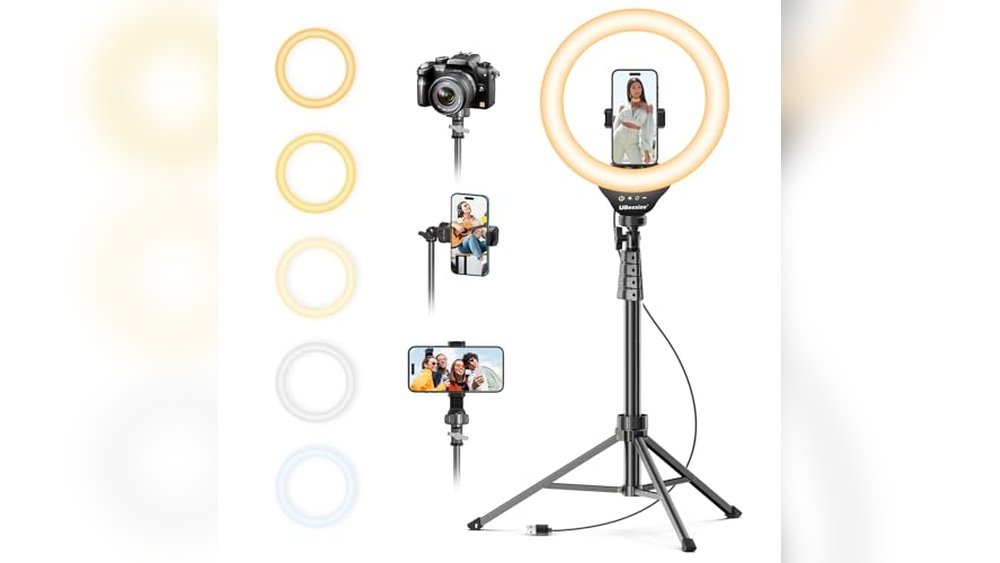
- Low cost ($10–$30): Clip-on ring light, basic headphones
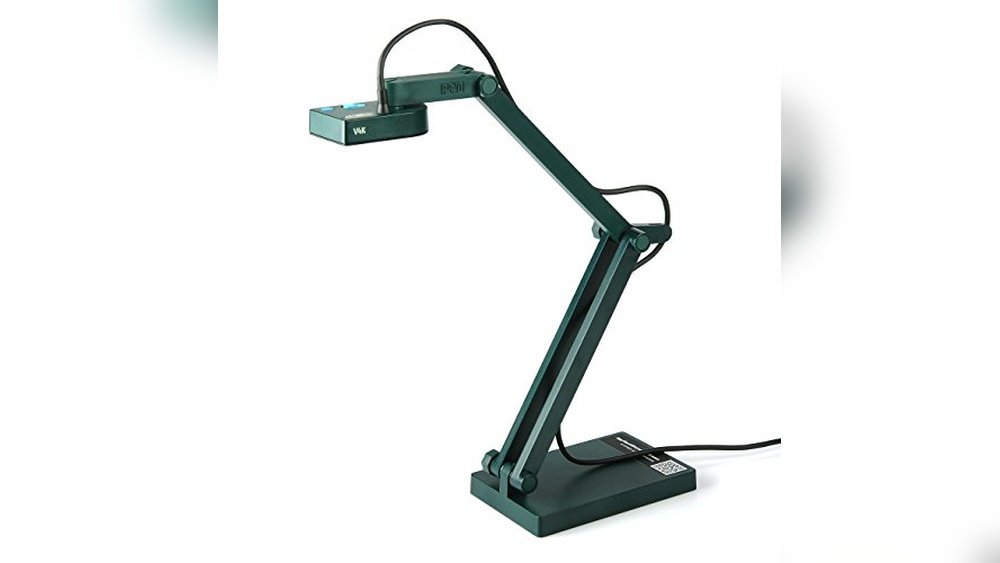
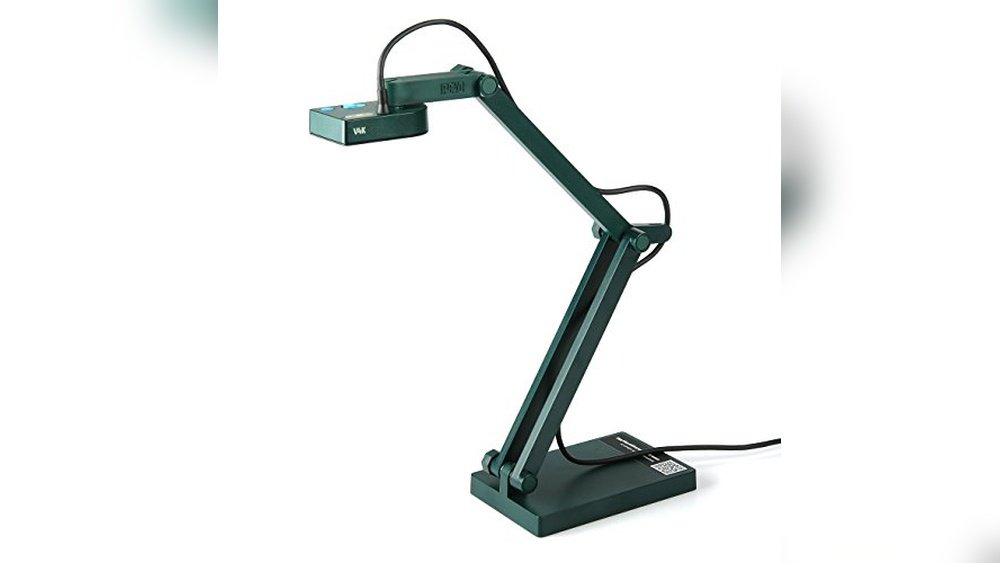
- Mid cost ($40–$100): USB microphone, 1080p webcam
Most improvements take 5–10 minutes before each call. Practicing these habits can save you from embarrassing moments.
Quick-start Checklist
- Tidy your background
- Test your camera and mic
- Adjust lighting
- Dress appropriately
- Position camera at eye level
- Silence phone and notifications
- Have water nearby (but off-camera)
Resource Summary
For more tips, visit TED’s guide to virtual meetings.
Frequently Asked Questions
How Can I Reduce Background Noise On Video Calls?
Use headphones with a built-in microphone. Mute yourself when not speaking. Close windows and doors, and ask others nearby to stay quiet during your call.
What Should I Do If My Internet Connection Is Unstable?
Switch to a wired connection if possible. Turn off other devices using the internet. Lower your video quality in settings if needed.
Is It Okay To Use A Virtual Background?
Yes, if it’s simple and professional. Avoid distracting images or animations. Test it before your meeting to make sure it works well.
How Should I Handle Unexpected Interruptions?
Stay calm. Mute your mic, apologize briefly, and handle the situation. Return to the call as soon as possible.
What’s The Best Way To Make Eye Contact On Video?
Look directly at the camera when speaking. Move your video window close to the camera if you need help remembering.
—
A little preparation makes a big difference in how you’re seen on video calls. By following these steps, you’ll look more professional, communicate clearly, and build trust with your team or clients every time.