Every year, more than 1.7 billion students worldwide use digital tools for learning. Screen recording software has become a must-have, letting students capture online classes, tutorials, or even their own presentations. But with so many options—and tight student budgets—finding the best free screen recording software can be confusing. This guide breaks down the top picks, compares features, and offers pro tips so you get the right tool for your needs—without spending a cent.
Why Screen Recording Matters For Students
Today’s students don’t just watch videos—they create them. Recording your screen helps you:
- Save important online lectures
- Make step-by-step project videos
- Record group study sessions
- Submit assignments as video files
- Practice presentations and review your performance
A good screen recorder can turn your laptop into a powerful learning tool. But free doesn’t always mean simple or high-quality. Some tools add watermarks, have recording limits, or lack editing features. Here’s how to pick the right software for your studies.
Stat: 62% of university students say they learn better when they record and review digital lessons, according to a 2023 EdTech survey.
What Makes A Great Free Screen Recorder?
Let’s break down the key factors to consider:
| Feature | Why It Matters | Typical Student Use |
|---|---|---|
| No Watermark | Ensures recordings look professional | Submitting assignments |
| Time Limit | Longer lessons need longer recordings | Capturing full-length lectures |
| Easy Editing | Trim mistakes, highlight key points | Making tutorials |
| Audio Recording | Capture your voice or system sound | Recording explanations |
| Export Formats | Compatibility with other platforms | Uploading to YouTube or LMS |
Pro tip: Always check if the free version adds a watermark or restricts length. Some free tools are almost as good as paid ones—if you know where to look.
Best Free Screen Recording Software For Students
Each tool here is free, widely used, and student-friendly. All are tested for performance, simplicity, and features that matter in school projects.
1. Obs Studio
OBS Studio is an open-source favorite. It’s used by everyone from teachers to gamers because it’s powerful and free.
- No watermark, no time limit
- Records screen, webcam, or both
- Supports audio from mic and system
- Works on Windows, Mac, and Linux
Many students love OBS for its flexibility. You can record full lectures, add overlays, or even stream live. The downside: the interface can feel a bit complex at first. But tons of tutorials exist, and once set up, it’s smooth sailing.
Pro Tip: Set up “Scenes” in OBS to quickly switch between screen-only, webcam, or a mix during your recording.
2. Sharex
ShareX is another open-source tool that packs a punch for Windows users.
- No watermark or recording limits
- Capture screen, region, or scrolling windows
- Simple annotation and editing tools
- Easy sharing to cloud or social platforms
ShareX is ideal for quick screen grabs, GIFs, and full video recordings. The interface is less flashy but offers deep customization. One clever feature: automatic upload to Google Drive or Dropbox for easy sharing with classmates.
3. Screencast-o-matic (free Version)
Screencast-O-Matic is a browser-based solution with a lightweight desktop app.
- Records up to 15 minutes per video (free)
- Allows webcam overlay
- Simple trimming tools
- Direct upload to YouTube
While the free version adds a small watermark, it’s in the corner and often unnoticed in school work. It’s fast to set up and perfect for quick presentations or feedback videos.
4. Loom (education Plan)
Loom is popular in classrooms for its speed and sharing features.
- Free for students and educators (with .edu or school email)
- No watermark or time limits on education accounts
- Instantly shareable links
- Records screen, webcam, or both
Loom’s interface is easy for beginners. You can record, share, and even see who watched your video. Tip: Use Loom for group project updates or to ask teachers questions by video.
5. Xbox Game Bar (windows 10/11)
Xbox Game Bar comes built into Windows 10 and 11.
- No downloads needed
- Easy shortcut: Win + G starts recording
- Records most apps and games
- Captures system audio
It’s mainly for gaming, but works well for recording browser lessons or software demos. Note: It doesn’t record everything (like File Explorer or some windows), so test before big projects.
6. Quicktime Player (mac)
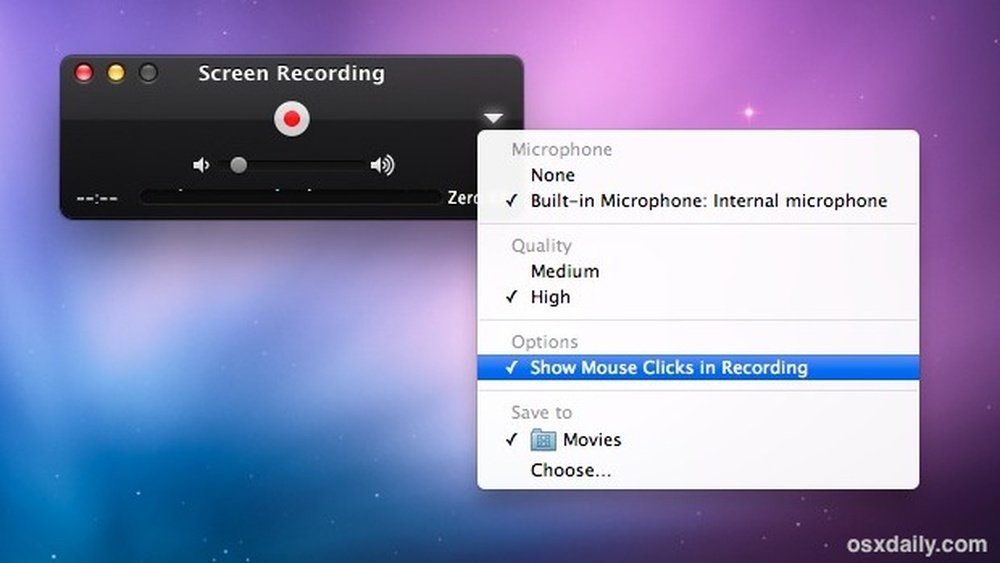
QuickTime Player is pre-installed on every Mac.
- One-click screen and audio recording
- No watermark or time limit
- Simple export options
QuickTime is basic but reliable for lectures, slideshows, and tutorials. For more editing features, pair it with iMovie (also free on Mac).
7. Apowersoft Free Online Screen Recorder
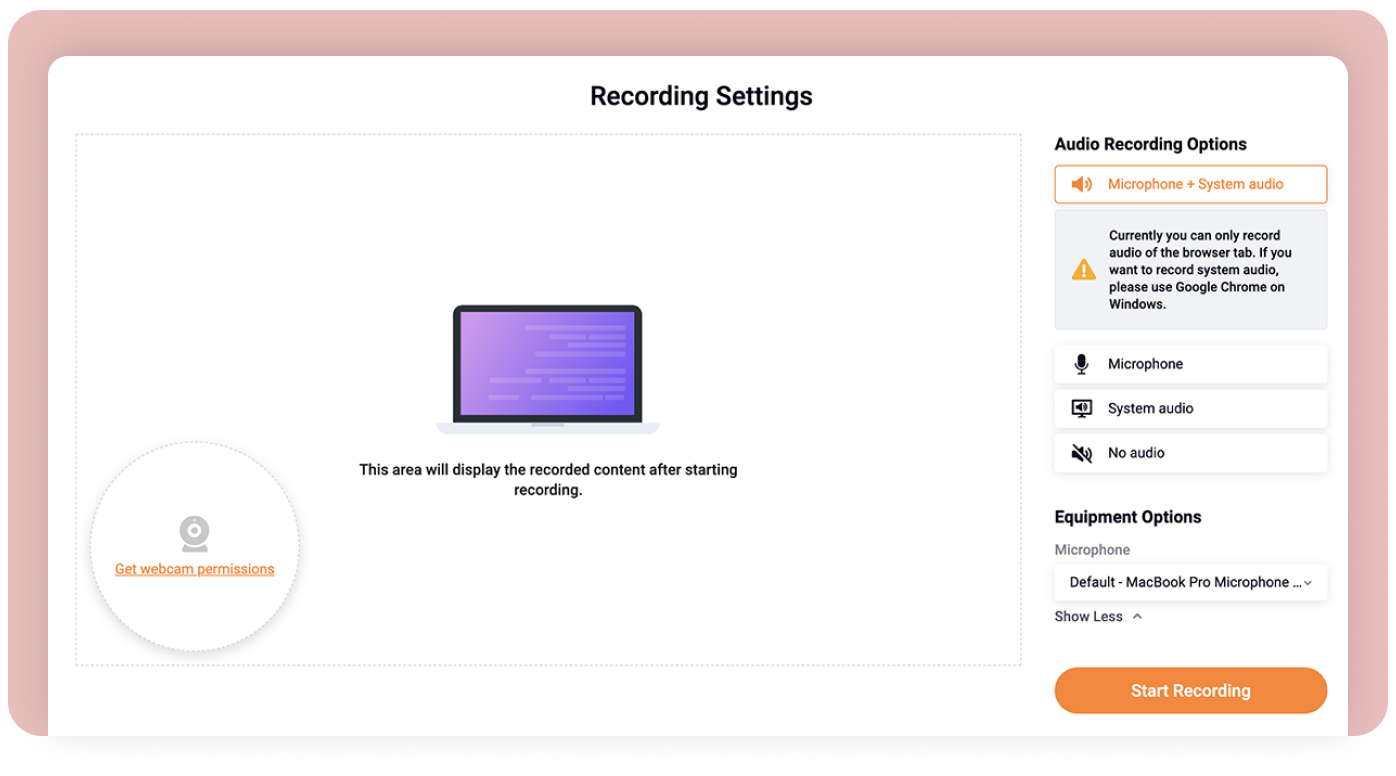
Apowersoft’s online recorder is browser-based, so it works on any system.
- No installation for most browsers
- No watermark, no time limit
- Supports webcam and system audio
- Download videos in multiple formats
You need to enable browser permissions, but it’s a flexible tool for students on shared or school computers.
8. Flashback Express
FlashBack Express is a Windows program with an easy interface.
- No watermark, no time limits
- Record screen, webcam, or both
- Simple timeline editor
While the advanced editor is paid, the free version is strong for basic recording. You can upload directly to YouTube or save to your computer.
9. Bandicam (free Version)
Bandicam’s free version is famous among gamers and tutorial creators.
- Records up to 10 minutes per video (free)
- Watermark in the corner
- High-quality video and audio
It’s easy to use and works well for quick lessons or demos. For longer projects, you’ll need to split recordings or upgrade.
10. Camstudio
CamStudio is an old-school, open-source screen recorder for Windows.
- No watermark, no time limits
- Exports to AVI or SWF formats
- Lightweight and fast
CamStudio is best for simple tasks. Its interface feels outdated, but it gets the job done for basic screen capture.
11. Screenrec
ScreenRec is known for instant sharing.
- No time limits, no watermark
- Creates shareable links instantly
- Records screen and webcam
You’ll need to create a free account to unlock unlimited recording. ScreenRec’s analytics show who watched your video, which is great for group projects.
12. Vlc Media Player
Most students use VLC for watching videos, but it can also record your screen.
- Free, open-source, and cross-platform
- No watermark or time limits
- Saves in common formats
Recording is hidden in the Media menu. It’s basic and lacks editing, but it’s useful in a pinch.
13. Icecream Screen Recorder (free Version)
Icecream Screen Recorder offers a friendly interface.
- Free version: 5-minute recording limit, watermark
- Draw and annotate while recording
- Schedule recordings
If you just need short clips or annotated screenshots, it’s a good pick. For longer videos, try another tool.
14. Nimbus Capture
Nimbus Capture works as a browser extension.
- Records browser tab, desktop, or webcam
- No watermark, 10-minute limit (free)
- Annotate and share instantly
Great for Chrome or Firefox users who need to capture web activities or add quick notes.
15. Google Meet Recording (with School Account)
If your school uses Google Workspace, you may have access to recording in Google Meet.
- No software to install
- Saves recordings to Google Drive
- Easy sharing with classmates
It’s only available if your admin enables it, and only during scheduled meetings. But for team projects or class presentations, it’s incredibly convenient.
16. Kapwing Studio
Kapwing is an online editor with screen recording features.
- Records webcam and screen (Chrome only)
- Free version: Watermark, export up to 7 minutes
- Powerful video editing tools
Kapwing’s real strength is editing—add text, trim clips, insert music. Perfect for short, polished video assignments.
17. Panopto (school License)
Some universities provide Panopto for lecture capture.
- Unlimited recording for users with school account
- Integrates with learning platforms (Canvas, Moodle)
- Searchable transcripts
You’ll need an invite from your school, but Panopto is robust for serious academic work.
Side-by-side Comparison
Choosing a tool depends on your needs: length, features, and what devices you use. Here’s a quick comparison:
| Software | Watermark | Time Limit | Platforms | Editing Features |
|---|---|---|---|---|
| OBS Studio | No | None | Windows, Mac, Linux | Advanced (multi-source) |
| ShareX | No | None | Windows | Basic |
| Loom | No (Edu plan) | None (Edu plan) | Windows, Mac, Web | Trimming, comments |
| Bandicam | Yes | 10 min | Windows | Basic |
| QuickTime | No | None | Mac | None |

Credit: www.youtube.com
Non-obvious Insights Students Overlook
- Cloud Storage Integration: Tools like ShareX and Loom auto-upload your recordings to the cloud. This means less risk of losing files if your laptop crashes. Always check if your recordings are saved locally or online.
- Browser Limitations: Many free browser-based recorders (like Nimbus, Apowersoft) can’t record system audio without extra plugins. If your lesson has important sound, test the tool first.
- Privacy and Security: Some free tools upload videos to their servers by default. Always read the privacy policy, especially when recording sensitive class content.
- School Licenses: Many schools and universities offer premium screen recording tools for free—check your student portal before paying for upgrades.
Warning: Never share recorded class content without permission. Some schools have rules about privacy and copyright.
Do’s And Don’ts For Student Screen Recording
| Do | Don’t |
|---|---|
| Test your setup before big projects | Forget to check for watermarks |
| Use headphones for better audio | Ignore recording time limits |
| Save a backup copy to Google Drive | Share private content without consent |
| Edit out mistakes for clarity | Record copyrighted material without permission |
Quick-start Guide: How To Record Your Screen (example With Obs Studio)
- Download and Install OBS Studio from the official website.
- Open OBS Studio and click “Add Source” to choose “Display Capture” (screen) or “Video Capture Device” (webcam).
- Select Audio Input if you want to record your voice.
- Click “Start Recording” and perform your lesson or presentation.
- Click “Stop Recording” when done. The file saves automatically.
- Trim or edit as needed using OBS or a free editor like Shotcut.
Tip: If you’re nervous, do a short test recording first to check audio and video quality.
Time And Budget Breakdown
Most free tools require only a few minutes to install and set up. Here’s what you can expect:
- Download/Install: 2–5 minutes (OBS, ShareX)
- Browser-based tools: Instant—just launch and go
- Learning curve: 10–30 minutes for advanced tools (OBS), 1–5 minutes for basics (Loom, QuickTime)
- Budget: $0 if you stick to the recommended free versions

Credit: www.youtube.com
Resource Summary
- OBS Studio: Best for long, professional recordings
- ShareX: Top pick for Windows and quick sharing
- Loom (Edu): Easiest for collaboration and instant sharing
- QuickTime: Go-to for Mac users
- Nimbus/Apowersoft: Good for browser-based recording
For more detailed reviews and user guides, check PCMag’s expert roundup.
Frequently Asked Questions
What Is The Best Free Screen Recorder With No Watermark?
OBS Studio is widely considered the best free screen recorder with no watermark, unlimited recording time, and strong editing features.
Can I Record Both Screen And Webcam At The Same Time?
Yes, many tools like OBS Studio, Loom, and FlashBack Express allow you to record your screen and webcam together. This is great for presentations or tutorials.
How Can I Record System Audio And My Voice?
Look for screen recorders that let you select both system and microphone audio sources. OBS Studio and ShareX support this, but browser-based recorders may need extra setup.
Is It Legal To Record Online Classes?
Recording online classes for personal study is usually allowed, but sharing or uploading them without permission may break school rules or copyright laws. Always check your institution’s policy.
Do Free Screen Recorders Work On Chromebooks?
Yes, browser-based tools like Nimbus Capture, Loom, and Apowersoft work on Chromebooks. Just add the extension or launch the web app.
—
Choosing the best screen recording software for students doesn’t have to be hard or expensive. Start with a tool that matches your device and project needs. Test before big assignments, keep privacy in mind, and use cloud backups. With the right screen recorder, you can save time, improve your learning, and create standout digital projects without breaking the bank.
Credit: kommodo.ai