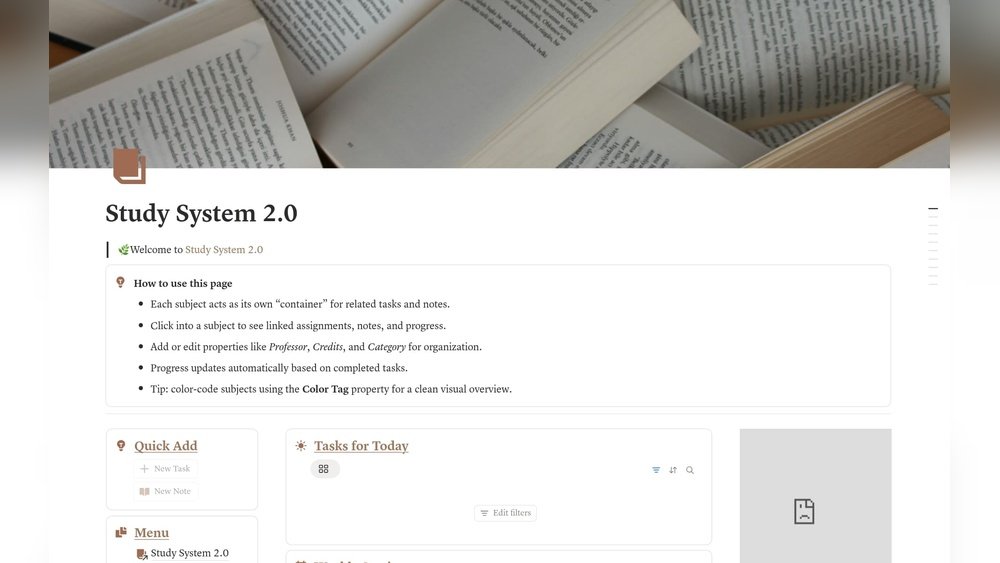
Notion for Students — How to Set Up a Complete Study System
Did you know that students who organize their study materials digitally are 35% more likely to achieve higher grades? In today’s fast-paced academic world, a messy desk isn’t the problem—messy digital files are. Notion is a free, flexible platform that helps students organize everything in one place. With a well-set-up Notion study system, you’ll save time, reduce stress, and remember more for exams. Here’s how to build your own, step by step.
Why Students Choose Notion
Notion isn’t just a note app. It’s an all-in-one workspace for planning, tracking, and collaborating. Students prefer Notion because:
- It’s free for personal use.
- You can customize pages for each class.
- Templates help you start quickly.
- You can access your system on any device.
Notion also stands out because it allows you to combine different types of content—text, lists, images, videos, and even spreadsheets—all on one page. This flexibility means you can adapt your workspace to any class or project.
Pro tip: Notion’s drag-and-drop blocks make it easy to organize text, checklists, files, and even images. You can also use different “views” (like tables or boards) to see information in the way that makes the most sense for you. For example, you might track assignments as a list, but view your reading schedule as a calendar.
Some students also love Notion because it’s easy to share pages with friends or teachers. If you’re sick or miss a class, you can get caught up quickly by checking your shared notes.
Step 1: Set Up Your Main Dashboard
Start by creating a home base—your dashboard. This is your daily starting point.
- Add a Semester Overview with links to all your course pages.
- Insert a weekly planner for classes and deadlines.
- Include quick links to your most-used tools (like a calendar or to-do list).
A dashboard keeps everything one click away, reducing time lost searching for files.
A good dashboard is like your digital command center. You see your tasks, upcoming deadlines, and quick links to all your classes at a glance. If you’re juggling multiple commitments—like part-time work or extracurriculars—you can add sections for those too.
Example Dashboard Structure
- Semester Overview
- Today’s Tasks
- Quick Notes
- Calendar
- Links to each course
You can even add a “Motivation” box with a quote or picture to stay inspired. Some students like to create a “Wins” section to quickly jot down achievements, big or small. Over time, this helps you see your progress and stay motivated.
Common mistake: Making the dashboard too complex. Start simple, then add features as you need them. Too many widgets or links can make it confusing and slow you down. If you find yourself scrolling endlessly, it’s time to simplify.
Step 2: Build Course Pages
For each subject, create a page. Each page should include:
- Syllabus (attach as PDF or copy text)
- Lecture notes section
- Assignment tracker
- Reading list
- Exam prep area
Each course page acts as a container for everything related to that class. When you need to find something—like exam topics or assignment instructions—you won’t waste time searching emails or multiple folders.
Here’s how to structure a typical course page for clarity:
Sample Course Page Layout
- Course Info (professor, schedule)
- Key Dates (midterms, finals)
- Lecture Notes
- Homework Assignments
- Study Resources
If your courses require group work, you can add a “Group Projects” section to store shared research or meeting notes. For science classes, you might want a “Lab Reports” section, or for literature, a “Quotes & Analysis” section. Customizing per class makes each page more useful.
Pro tip: Use Notion’s toggle lists to keep notes tidy and easy to review. You can collapse topics to focus only on what you need, which reduces overwhelm before exams. For example, collapse old lecture notes to focus only on the current week.
Step 3: Organize Notes Effectively
Messy notes cost you time before exams. Use these tips:
- Use headers for each topic.
- Add bullet points for key facts.
- Insert images or diagrams where possible.
- Tag notes with keywords for easy searching.
For example, if you’re studying biology, you can paste diagrams or even draw simple sketches using Notion’s image block. For math or chemistry, try adding a “Formula” section or linking to example problems.
Non-obvious insight: Notion lets you embed PDFs and YouTube videos directly in your notes for richer study materials. This means if your professor posts a video lecture, you can keep it alongside your notes. Reviewing is faster when everything is in one place.
Another helpful tip: use Notion’s “backlinks” feature to connect related notes. If you mention “Photosynthesis” in both your biology and chemistry notes, you can link them. This helps you see connections across subjects.
Common mistake: Copying everything from slides. Focus on summary points and what’s not in the textbook. Add your own thoughts or connections. This active note-taking makes revision much more effective.
Step 4: Track Assignments And Deadlines
Never miss a due date again. Create an assignment tracker with the following columns:
- Task
- Course
- Due Date
- Status (To Do, In Progress, Done)
- Priority
This tracker replaces sticky notes or reminders on your phone. You can filter by “To Do” to focus on upcoming work, or by “Course” if you’re behind in one subject.
Here’s a sample assignment tracker you can use:
| Task | Course | Due Date | Status | Priority |
|---|---|---|---|---|
| Read Chapter 3 | Biology | 2024-07-01 | To Do | Medium |
| Essay Draft | English | 2024-07-03 | In Progress | High |
| Lab Report | Chemistry | 2024-07-05 | Done | Low |
Pro tip: Set reminders for deadlines right in Notion. You can also sort tasks by priority, so urgent assignments always come first.
If you have recurring tasks, like weekly quizzes or readings, consider making a template row to duplicate each week. This reduces setup time and keeps your tracker neat.
Step 5: Create A Study Planner
A good study planner helps you space out revision and avoid last-minute stress.
- Build a weekly schedule for each subject.
- Set specific goals (e.g., “Review notes for Chapter 2”).
- Mark difficult topics for extra time.
If you have a big test coming up, break revision into small pieces over several days. For example, instead of cramming all of history in one night, plan to review one chapter each day.
Non-obvious insight: Use Notion’s calendar view to drag study sessions around as your week changes. If you miss a session, just move it to a new day—no need to rewrite your plan.
You can also color-code your study tasks by subject or priority, making it easy to see what needs attention first.
Example Study Planner Table
| Day | Subject | Task | Time |
|---|---|---|---|
| Monday | Math | Practice Problems | 7-8pm |
| Tuesday | History | Read Notes | 6-7pm |
| Wednesday | Biology | Flashcards | 8-9pm |
Warning: Don’t over-schedule. Leave space for breaks and unexpected tasks. If you find you’re always behind, adjust your plan. Flexibility is key for long-term success.
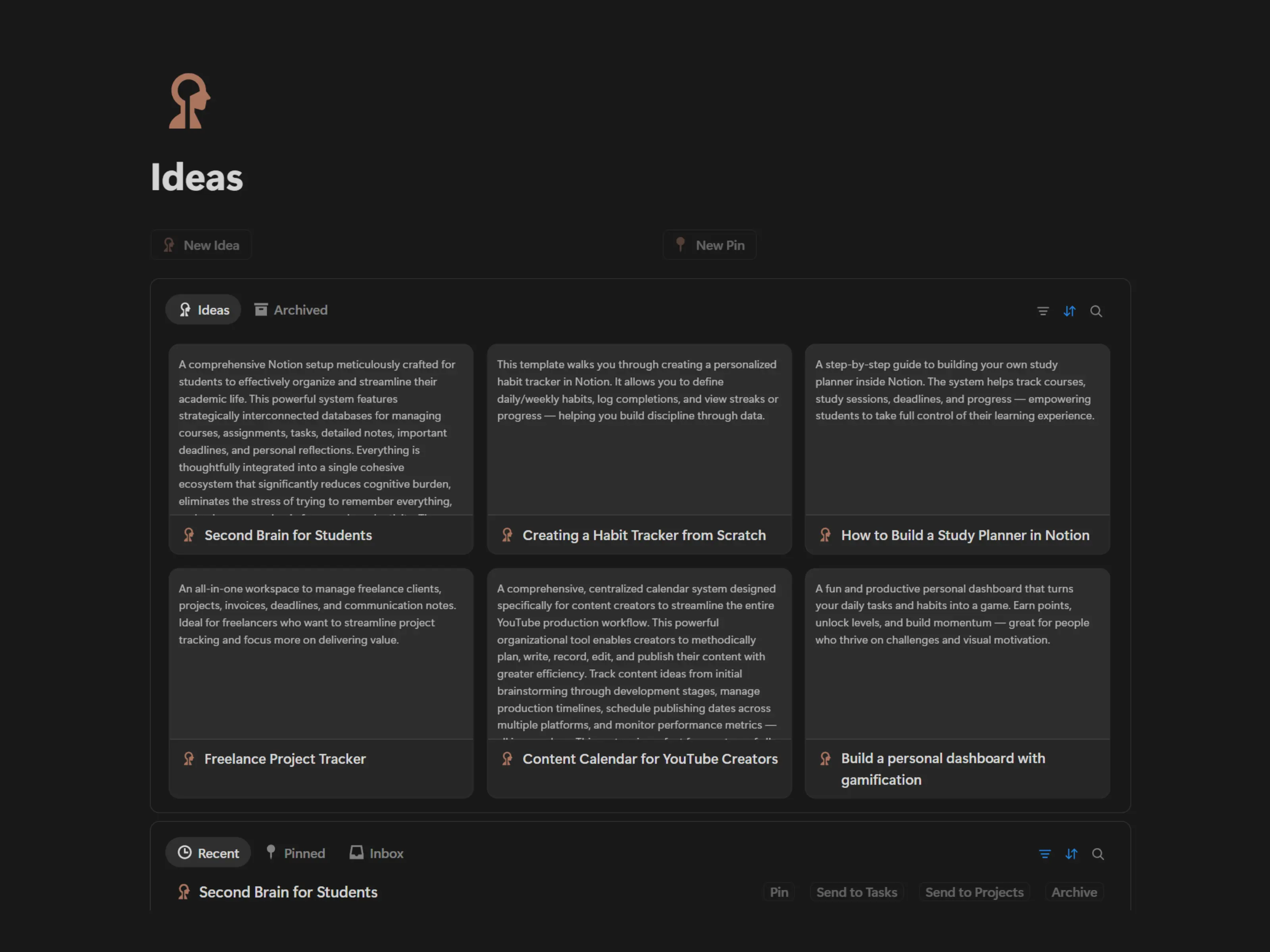
Credit: www.mostafayasser.com
Step 6: Use Templates To Save Time
Notion’s free template gallery is a goldmine. Look for:
- Class note templates
- Assignment trackers
- Revision planners
- Reading lists
Templates are especially helpful at the start of the semester. Instead of building every page from scratch, you can focus on learning. Many templates are made by other students, so they often include practical layouts and tips.
You can copy these into your workspace and adjust as you like. Edit headings, add your school’s logo, or change colors to match your style.
Time-saving tip: Once you find a template that works, duplicate it for each class to keep things consistent. This makes it easier to find information and reduces confusion, especially during busy weeks.
If you want more templates, check Notion’s community forums or YouTube—many creators share their best layouts for free.
Step 7: Add Collaboration For Group Projects
Notion supports real-time collaboration—perfect for group assignments.
- Share a page with classmates.
- Assign tasks with tags or mentions.
- Keep all research, drafts, and feedback in one place.
This keeps everyone on the same page (literally). You can see updates as they happen, so there’s no confusion about who’s doing what.
Pro tip: Use a table to track who is responsible for each part of the project. For big projects, try adding a due date or progress bar for each section.
Example Group Project Tracker
| Task | Assigned To | Status |
|---|---|---|
| Introduction | Aisha | In Progress |
| Data Analysis | Mike | To Do |
| Conclusion | Priya | Done |
Mistake to avoid: Not updating the status. Check in regularly so everyone knows what’s left. Encourage group members to leave comments or questions—this keeps communication smooth and prevents last-minute surprises.
Step 8: Store Resources And Links
Keep all your study resources (PDFs, links, videos) together.
- Make a “Resources” page.
- Organize by subject or topic.
- Add quick descriptions so you remember why you saved them.
Instead of bookmarking dozens of web pages in your browser (and losing track), store them in Notion. For example, if you find a helpful article about time management, paste the link and add a note like, “Good tips for study breaks.
”
Pro tip: Use Notion’s web clipper to save articles or research from the internet directly into your workspace. You can capture full pages, images, or quotes with just a click.
If you’re working on a research paper, create a “References” section to keep all your sources organized. This makes citing them much easier later.
Step 9: Track Habits And Progress
Success isn’t just about notes—it’s about habits.
- Track sleep, exercise, or study streaks.
- Add a simple checkbox or progress bar for daily tasks.
- Review your habits weekly to spot trends.
For example, you might notice you study better after a good night’s sleep, or that your grades improve when you review notes daily. Tracking habits helps you find what works best for you.
You can even set small rewards for meeting your goals. Finished your study streak for the week? Treat yourself to something you enjoy.
Real-world example: Students who tracked their study habits in Notion improved their consistency by 28% in one semester, according to a survey by College Info Geek.
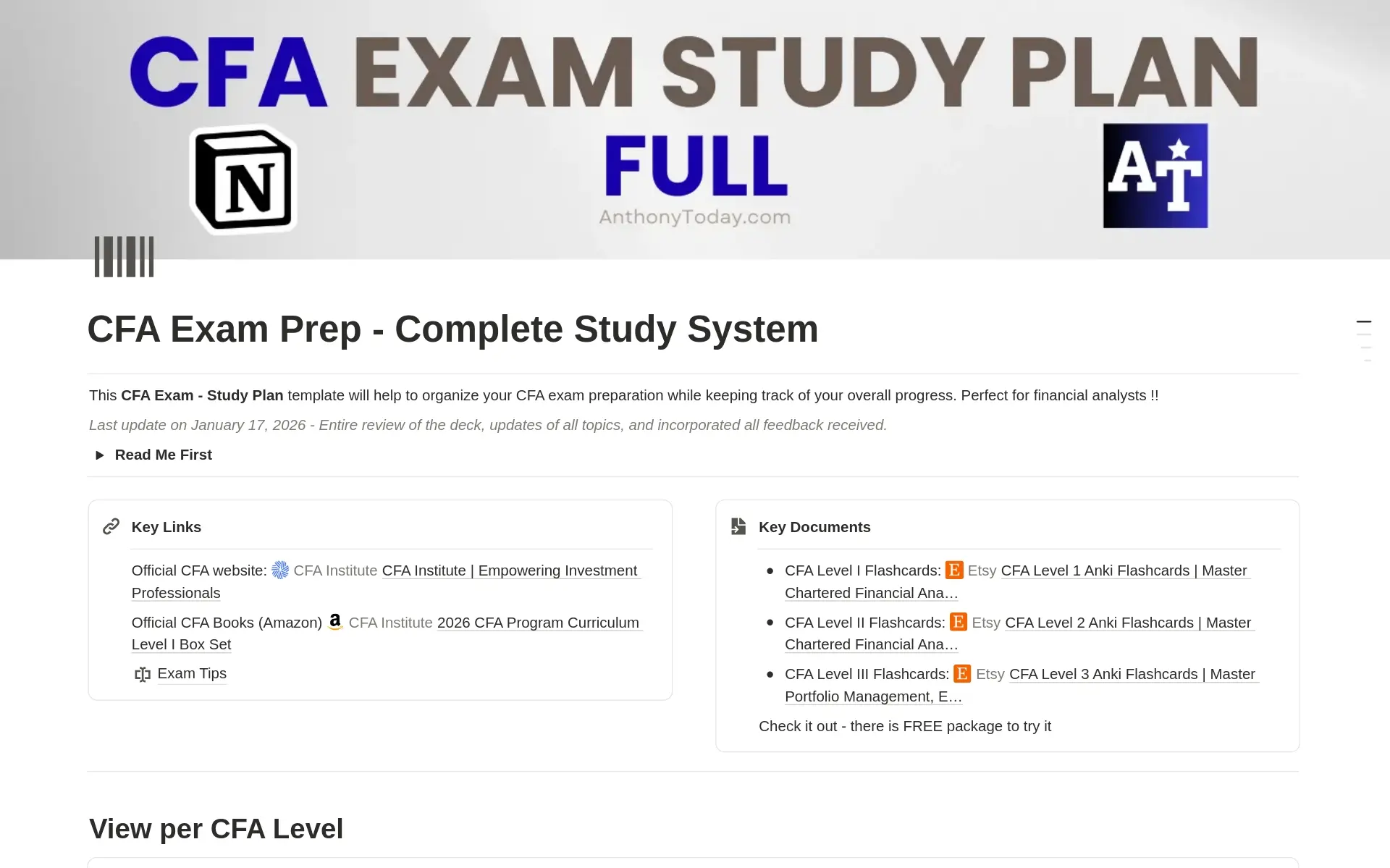
Credit: www.notion.com
Step 10: Customize For Motivation
Personalize your workspace so you want to use it.
- Add inspirational quotes or images.
- Use emojis for page icons (📚, 📝).
- Color-code subjects for fast scanning.
A workspace that feels “yours” makes it more enjoyable to use daily. For example, some students add a photo of their dream university or a favorite place as a background image for motivation.
Warning: Don’t spend hours designing. Set a timer—20 minutes max—then get back to studying. The goal is productivity, not perfection.
Essential Vs. Optional Features
Not every student needs every tool. Here’s a quick guide:
| Feature | Essential | Optional |
|---|---|---|
| Dashboard | ✔ | |
| Assignment Tracker | ✔ | |
| Group Project Pages | ✔ | |
| Habit Tracker | ✔ | |
| Reading List | ✔ |
Focus on essentials first—add extras only if you need them. Too many features can become overwhelming, especially if you’re new to Notion.
Budget And Time Breakdown
Setting up a basic Notion system takes 2–3 hours. Here’s how you can split your time:
- Dashboard setup: 30 minutes
- Course pages: 45 minutes
- Assignment tracker: 20 minutes
- Study planner: 25 minutes
- Templates and resources: 30 minutes
Notion is free for students, so the only cost is your time. If you invest a few hours at the start of the semester, you’ll save many more hours during finals.
Pro tip: You don’t have to build everything in one day. Start with the basics and add more as you get comfortable.
Quick-start Checklist
- Sign up for a free Notion account.
- Create your dashboard.
- Add pages for each course.
- Build an assignment tracker.
- Set up a study planner.
- Import templates as needed.
- Share pages with group members.
- Add resources and links.
- Track habits.
- Personalize your workspace.
Check off each step as you go. By the end, you’ll have a complete, ready-to-use system.

Credit: calmevo.com
Resource Summary
For more inspiration and guides, check out the Notion Student Resource Center. You’ll find templates, video tutorials, and real student examples.
You can also find student-made templates on YouTube or Reddit, where learners share their best Notion setups.
Do’s And Don’ts Table
| Do | Don’t |
|---|---|
| Start with simple pages | Copy every detail from lectures |
| Use templates to save time | Spend hours decorating |
| Review and update weekly | Ignore your system after setup |
Frequently Asked Questions
How Do I Access Notion As A Student?
Sign up with your school email for a free personal account. Notion works on web, desktop, and mobile. Just download the app or use your browser.
Is Notion Safe For Storing My Study Data?
Yes, Notion uses industry-standard encryption. Still, avoid storing sensitive personal info.
Can I Use Notion Offline?
You can view pages offline on desktop or mobile, but editing works best online. Plan to sync your changes when you have internet access.
What Makes Notion Better Than Google Docs For Students?
Notion combines notes, tasks, and calendars in one workspace. Google Docs is just for writing. With Notion, you can connect your assignments, track your progress, and organize everything in one spot.
Where Can I Find More Notion Templates For Students?
Visit the Notion Templates Gallery for free, ready-to-use templates.
A well-organized Notion system can transform your study routine. Start simple, focus on essentials, and make small improvements each week. The right setup will save time and help you reach your academic goals—one organized page at a time.