
Choosing the right laptop for college can feel overwhelming, but it’s one of the smartest investments you’ll make for your education. Did you know that over 95% of college students in the US use laptops for coursework, note-taking, and research? The right choice can boost your productivity, reduce stress, and even save you money over time. Yet, with so many options and specs, it’s easy to feel lost. This guide breaks down what really matters—so you get a laptop that fits your needs and budget, without regrets.
What Does “college Laptop” Really Mean?
A college laptop isn’t just any computer you can buy. It’s a tool that supports your academic life—assignments, virtual classes, group projects, and entertainment. Think of it like a backpack: it should be light, reliable, and roomy enough for your essentials, but not so heavy or complex that it slows you down. The perfect laptop varies by major, study habits, and budget. For example, an engineering student will need more power than a literature major.
But there’s more to it. Your college laptop becomes your main work device, your entertainment center, and sometimes, your lifeline for staying connected with classmates and professors. Some students may need to run software like MATLAB or Adobe Photoshop, while others just need smooth video calls and easy access to Google Docs.
A college laptop should be flexible enough to handle sudden changes, like shifting from in-person to remote learning.
If you live on campus, you might also want a device that’s tough enough to survive a few bumps or even a coffee spill. Overlooking these practical needs is a common mistake. The best laptop for you will balance performance, durability, and convenience—not just the latest tech trends.
Common Myths Vs Facts
| Myth | Fact |
|---|---|
| You need the most expensive laptop | Mid-range models often meet all college needs |
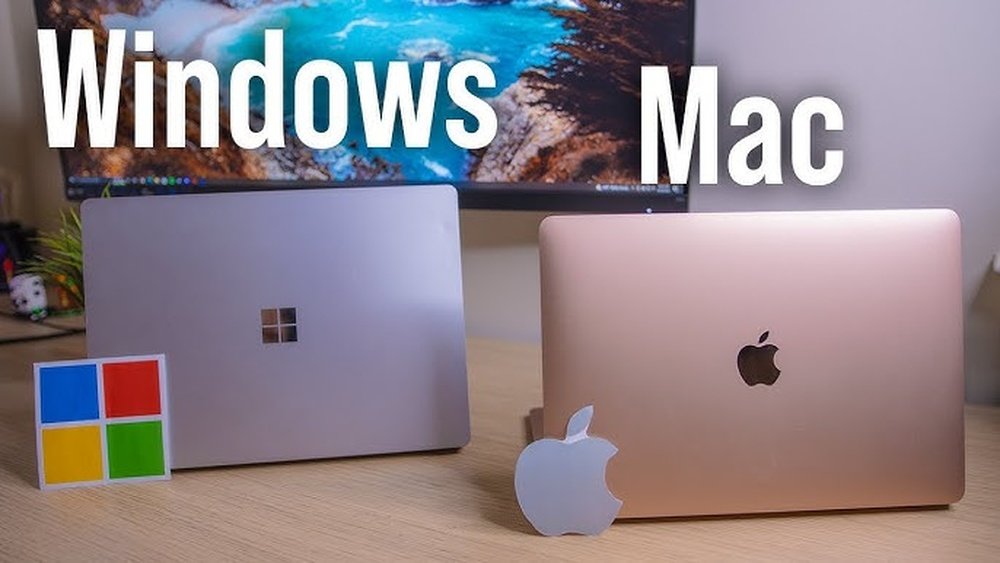
| MacBooks are always better for students | Windows and Chromebooks can be just as useful, depending on requirements |
| All majors need high specs | Specs depend on your field—arts vs. engineering vs. business |
It’s easy to be swayed by advertising or peer pressure. Many believe only a MacBook can “get you through college,” but that’s not true. For example, business or humanities students can get excellent performance from more affordable Windows or Chromebook models.
Also, remember that college is only four years—buying a laptop that’s “future-proof” for 10 years is often a waste of money.
Core Features: What Really Matters
With so many choices, focus on these key features first. They have the biggest impact on your daily use and budget.
1. Operating System
Pick between Windows, macOS, and Chrome OS:
- Windows: Most software compatibility, flexible, many price points.
- MacOS: Preferred for design, smooth experience, but pricier.
- Chrome OS: Great for web-based work, very affordable, but limited offline apps.
Each system has its strengths. Windows is the most common, so you’ll find lots of support and guides online. MacOS offers a clean, reliable experience and is loved by creative students, but it can be tough if your school only provides Windows-based software.
Chrome OS is perfect for those who do everything in the browser and want something simple.
Pro tip: Check your school’s software requirements before buying.
If your course uses a specific program (like AutoCAD or SPSS), make sure it runs on your chosen OS. You can usually find this information in your syllabus or by asking your department. Some majors, especially in science or engineering, may need Windows-only software.
2. Performance (processor, Ram, Storage)
- Processor (CPU): For most, an Intel Core i5 or AMD Ryzen 5 is enough. If you edit videos or run simulations, go higher.
- RAM: At least 8GB for smooth multitasking. Art and engineering students may need 16GB.
- Storage: SSDs are much faster than HDDs. 256GB SSD is a minimum; 512GB is safer if you store lots of files.
A fast processor helps with multitasking and heavy apps. But don’t just look at the numbers—pay attention to how you’ll use your laptop. If you mostly write essays and browse the web, you won’t need the latest chip. If you’re editing video, animating, or running code, invest in better specs.
Non-obvious insight: Many students buy too much storage. Cloud services like Google Drive or OneDrive can store large files, so a 256GB SSD is enough unless you work with video, photos, or big data.
3. Battery Life
Aim for 7+ hours real-world battery. All-day use is key if you move between classes. Some premium models last 10-12 hours.
Remember, battery life listed by brands is often higher than what you’ll get. Reading reviews helps you know the real story. Also, think about your day: will you have chances to charge between classes? If not, longer battery is crucial.
Tip: Battery life can drop after a year or two. Choose a model known for good battery health over time.
4. Portability (weight And Size)
A college laptop should be thin and light—ideally under 3.5 pounds and with a 13-14 inch screen. Larger screens are heavier and harder to carry.
You’ll carry your laptop to class, the library, cafes, and back home. Even half a pound makes a difference by the end of the day. If you commute or have a lot of walking, prioritize weight and size. For example, a 15.
6-inch laptop may look nice but gets heavy fast.
Some students overlook this and regret it—especially after the first week of carrying a heavy bag across campus.
5. Display Quality
A Full HD (1920×1080) screen is ideal. If you’re in arts or design, look for better color accuracy (sRGB coverage).
Screen quality affects your eyes and your work. A sharp, bright display makes long study sessions easier. For design students, a color-accurate screen helps with editing. Most mainstream models now offer Full HD as standard, but double-check before buying. If you wear glasses or get eye strain, consider a matte screen or models with blue light reduction.
6. Build Quality And Keyboard
You’ll type a lot. Look for:
- Sturdy build (aluminum or strong plastic)
- Comfortable keyboard (backlit helps in low light)
- Precision trackpad
A durable laptop saves headaches later. Even a plastic chassis can be tough if well made—read user reviews for real-world feedback. Keyboards matter more than you think; you’ll write essays, code, and emails daily. Backlit keyboards are a lifesaver during late-night study sessions.
Try typing on a model in a store if you can.
Non-obvious tip: Some laptops have keyboards that feel cramped or have awkward layouts. Test before you buy, or check for complaints in reviews.
7. Connectivity
- At least 2 USB ports, one USB-C, HDMI (for presentations), headphone jack
- Wi-Fi 6 is a bonus for faster, stable connection
- SD card slot useful for photographers
Think ahead: will you connect to projectors, printers, or cameras? More ports mean fewer adapters. If your model only has USB-C, you’ll need a hub for older devices. Fast Wi-Fi is helpful in crowded dorms and libraries, where many devices share the network.
8. Webcam And Microphone
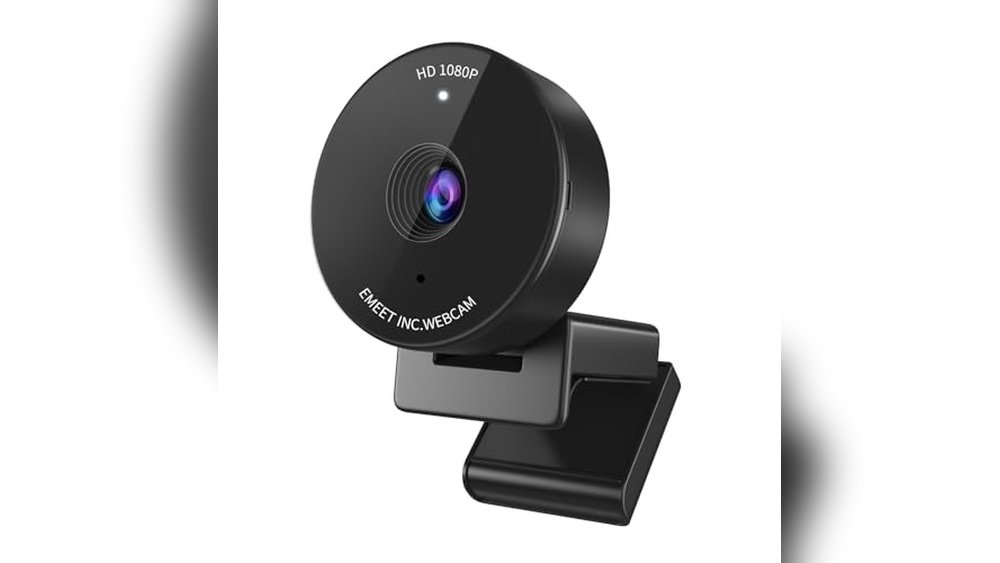
With remote classes, a 720p or higher webcam and clear mic are non-negotiable.
Even if you don’t plan on remote learning, professors may require video assignments or online office hours. Poor webcam or mic quality can make a bad impression. Test these features if you can, or check reviews for real-world feedback.
9. Warranty And Support
Laptops break. 1-year warranty is standard; accidental damage protection is smart.
Non-obvious tip: Many colleges have campus tech support for brands they recommend. Check for student service centers.
Some manufacturers offer on-campus repair or fast shipping for students. This can save days of downtime if your laptop fails before a big deadline. Also, keep your purchase receipt and warranty info handy—you’ll thank yourself if something goes wrong.

Credit: smartbuy.alibaba.com
Essential Vs. Optional Features
Not every feature is vital for every student. Here’s a quick breakdown:
| Essential | Optional |
|---|---|
| 8GB+ RAM | Touchscreen |
| 256GB+ SSD | 2-in-1 convertible |
| 7+ hour battery | Dedicated graphics card |
| Good keyboard | Fingerprint reader |
| Lightweight design | High-end speakers |
Optional features like touchscreens or convertibles are nice, but not always necessary. Touchscreens can be great for art or taking notes, but they often cost more and drain battery faster. Dedicated graphics help with gaming or video editing, but are overkill for writing papers and browsing the web.
Major-specific Needs
Your college major changes what you need from a laptop.
Arts, Design, Media
- Strong CPU, at least 16GB RAM
- High-res, color-accurate display
- Good graphics card (NVIDIA or AMD)
- Plenty of ports for peripherals
Creative students need laptops that can handle large files and complex programs. Applications like Adobe Creative Suite require more power and better displays. Some art students even use drawing tablets—check for compatibility.
Extra tip: If you do a lot of video work, consider models with active cooling. Thin laptops can get hot and slow down.
Engineering, Computer Science
- Powerful processor (Intel i7/Ryzen 7 or better)
- 16GB RAM minimum
- Dedicated graphics for CAD, simulation, coding
- Linux support can be a bonus
STEM students often run simulations, code, or 3D modeling software. These tasks are demanding. Some engineering courses require Windows-only tools, so MacBooks may need to run Windows in a virtual machine, which isn’t ideal. If you like coding on Linux, check for good hardware compatibility before buying.
Extra insight: Some engineering programs have laptop loan or recommendation lists. Always check with your department before buying.
Business, Humanities, Social Sciences
- Lightweight, long battery
- Comfortable keyboard
- 8GB RAM usually enough
- No need for high-end graphics
These majors use more web, office, and communication tools. Here, portability and battery life are more important than raw power. A good webcam and mic are still valuable for online presentations.
Science, Math, Statistics
- Excel and statistical software run well on mid-range laptops
- Consider more RAM for large data sets
- Good battery for long labs
Science students may use software like SPSS, R, or MATLAB, but most run well on mainstream laptops. If you handle big data or multiple simulations, consider extra RAM and storage.
Pro tip: Ask upper-year students or professors what they recommend. Requirements change fast.
Setting Your Budget
Laptops for college range from $300 to $2,000+. Most students get the best value between $600 and $1,200.
How To Budget
- List your must-haves (see essential features).
- Check for student discounts (Apple, Dell, Lenovo, Microsoft offer them).
- Save on extras: Avoid paying more for features you won’t use.
- Plan for accessories: Case, mouse, maybe external drive.
Set a budget that covers your main needs but leaves some room for surprises, like a price drop or bundled accessory. Many brands offer free upgrades or software for students, so check official student portals. Don’t forget sales around back-to-school season.
Real-world Example
Sarah, a psychology major, chose a $750 Windows laptop with 8GB RAM, 256GB SSD, and 10-hour battery. She skipped the dedicated graphics card, saving $200.
Another example: John, an engineering student, spent $1,100 for a high-performance machine with 16GB RAM, 512GB SSD, and a dedicated graphics card. He found a student discount that included a free backpack and extended warranty.
Non-obvious insight: Buying last year’s model can save you 20-30% with little performance loss.
Refurbished or open-box deals from official stores can also stretch your budget further, often with full warranty.
Comparing Top Laptop Categories
Let’s see how Windows laptops, MacBooks, and Chromebooks stack up for college.
| Type | Pros | Cons | Best For |
|---|---|---|---|
| Windows | Wide range, most software, affordable options | Some bloatware, more updates | All majors, especially science and engineering |
| macOS | Premium build, smooth, great for creative work | Expensive, less repairable | Design, art, media, those who prefer Apple |
| Chromebook | Very affordable, simple, long battery | Limited offline use, less for advanced software | Web-based studies, writing, basic tasks |
Don’t just pick what your friends use. For example, Chromebooks are great for note-taking and browsing but can’t run heavy software. MacBooks are reliable but cost more to repair if damaged. Windows laptops offer choice and value, but the quality varies by brand and model.
If you’re unsure, visit a campus computer lab or library to see what’s common in your major. This helps you choose a laptop that fits in with group projects and tech support.
Quick-start Checklist
Before you buy, run through this checklist:
- Check your college’s recommended brands and specs.
- List the software you’ll use (ask professors).
- Decide on Windows, Mac, or Chrome OS.
- Set a budget with a 10% buffer for accessories.
- Test the keyboard in-store if possible.
- Research student discounts and warranty offers.
- Read recent reviews (not just best-of lists).
- Consider buying from official or major retailers for support.
- Register your laptop for warranty after purchase.
Tip: Don’t rush. A few days of research can save years of frustration.
Also, keep all packaging for a few weeks after buying. If you find a problem, returns are easier.
Accessories You’ll Actually Use
You don’t need everything, but these must-have accessories are worth budgeting for:
- Protective case or sleeve: Reduces risk of damage.
- Wireless mouse: Makes long work sessions easier.
- USB flash drive or external SSD: For fast backups and sharing files.
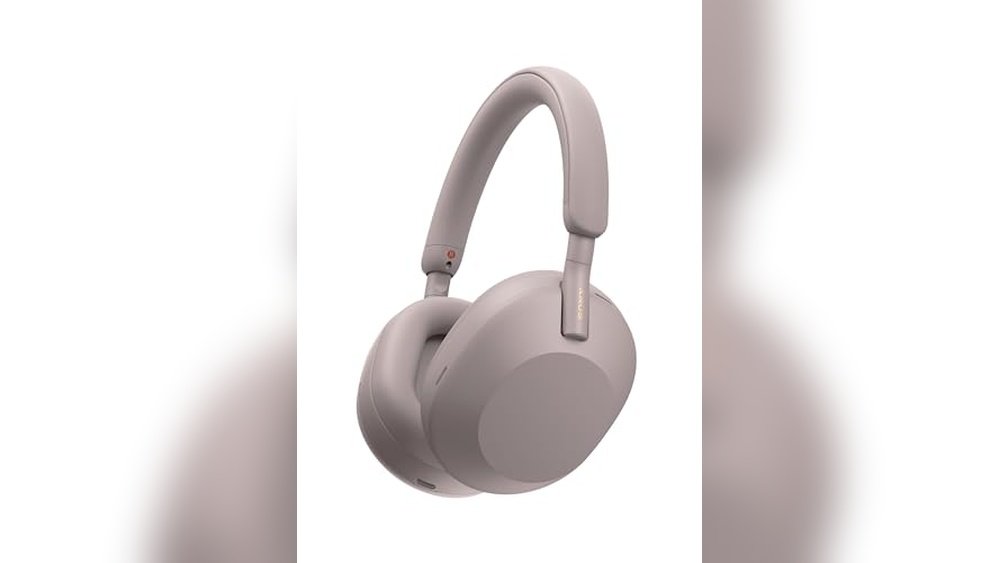
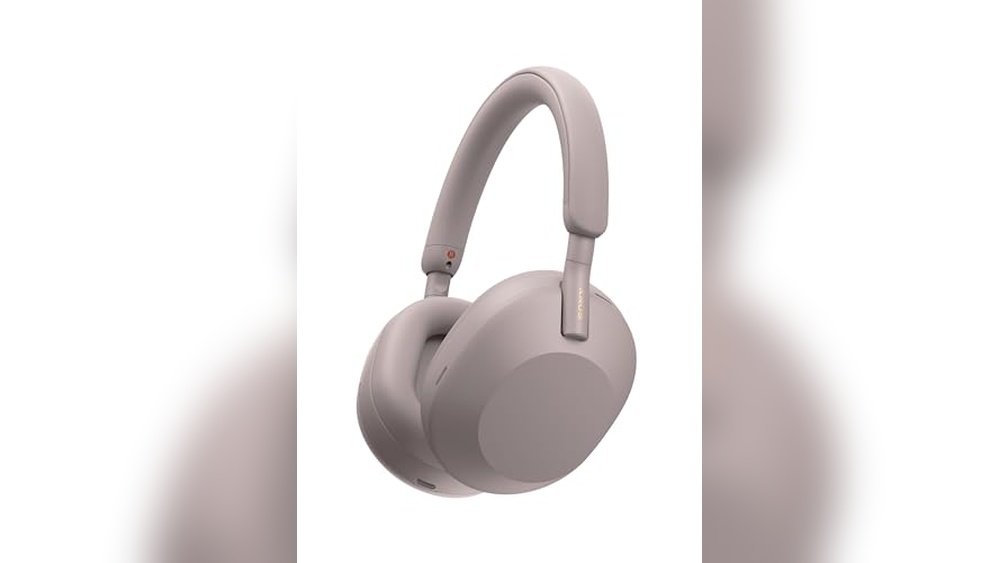
- Headphones with mic: For online classes and meetings.
- USB-C hub: For connecting more devices if your laptop has limited ports.
Optional but nice:
- Laptop stand for better posture.
- External keyboard for dorm desk setups.
A spare charger can be a lifesaver. If you lose or break your only one, you can keep working. Also, cleaning wipes help keep your keyboard and screen fresh, especially during cold and flu season.
Common Mistakes To Avoid
Many students make mistakes that cost time, money, and productivity. Here’s what to watch out for:
- Focusing on looks over specs: A beautiful laptop with slow hardware will disappoint fast.
- Overpaying for high-end features: Unless you truly need them, they’re wasted money.
- Ignoring warranty and support: One accident can mean expensive repairs.
- Buying too small or too big: 13-14” is the sweet spot for most.
- Missing student deals: Always check your school’s tech store or portal.
Another common mistake: forgetting about future needs. If your major might change, choose a laptop that’s flexible enough for other fields. Also, don’t skip reading reviews from actual students—they highlight issues you might miss in official specs.
Do’s And Don’ts Table
Here’s a quick reference for smart laptop shopping:
| Do | Don’t |
|---|---|
| Test the keyboard and screen in person if possible | Buy based only on online photos |
| Check software requirements for your major | Assume all laptops run all programs |
| Register for student discounts | Skip warranty or support options |
| Read recent user reviews | Buy the cheapest option blindly |
Extra “do”: After buying, set up backups right away. Lost work is a common college disaster.
Real-world Applications
A well-chosen laptop lets you:
- Take digital notes in class quickly and organize them.
- Join online lectures with a good webcam and mic.
- Run demanding software for projects or research.
- Collaborate in real time on group assignments.
- Enjoy music, movies, and games in your free time.
Example: Maria, a graphic design student, chose a MacBook Air for its display and reliability. She uses Adobe Creative Cloud daily and connects to printers and scanners at her campus lab.
Another example: Josh, a biology major, picked a lightweight Chromebook. He uses Google Docs, attends video meetings, and saves money for a better desktop at home.
A well-matched laptop doesn’t just help you work—it becomes your hub for social life, staying organized, and relaxing after a tough exam.
Top Resources For College Laptop Buyers
Here are trusted sources for research and deals:
- Your college’s official tech website or bookstore
- Consumer Reports for unbiased reviews
- Manufacturer student portals (Apple, Microsoft, Lenovo)
- Reddit forums (r/SuggestALaptop, r/college)
You can also talk to your school’s IT department for up-to-date advice, or join college Facebook groups to see what students actually use.

Credit: www.ibenzerb2b.com
Key Takeaways
- fit Your Major: Match Specs To Your Coursework.
- Set a realistic budget: Don’t overspend on extras you won’t use.
- prioritize Battery And Portability: You’ll Carry Your Laptop Everywhere.
- check For Discounts: Student Deals Can Save Hundreds.
- read Reviews And Test In Person If You Can.
Frequently Asked Questions
How Much Should I Spend On A College Laptop?
Most students will find the best value between $600 and $1,200. Budget models work for basic needs, but avoid anything under $350 unless your tasks are very light.
Is A Macbook Better Than A Windows Laptop For College?
Not always. MacBooks are excellent for design and media, but Windows laptops are more flexible and affordable. It depends on your major and preferences.
Can I Use A Chromebook For College?
Yes, if your work is mostly web-based (Google Docs, browsing, video calls). If you need specialized software (like Photoshop or engineering tools), a Windows or Mac laptop is better.
What’s The Ideal Laptop Size For Students?
A 13-14 inch screen offers the best balance of portability and usability. Larger models are harder to carry; smaller ones can feel cramped.
Should I Buy An Extended Warranty Or Accidental Damage Protection?
If you’re rough on devices or worried about accidents, yes. Otherwise, the standard 1-year warranty is enough for most students.
—
Picking a laptop for college is a mix of research, personal needs, and smart spending. Don’t be pressured by ads or trends—focus on what fits your studies and lifestyle. With the right laptop, you’ll be ready for every assignment, group project, and late-night study session.

Credit: plantin.alibaba.com