Chromebook Vs Laptop For Students — Which Should You Buy?
================================================================================
Did you know that over 50% of U.S. classrooms use Chromebooks as their main computer? But walk into a university library, and you’ll see students typing away on both Chromebooks and regular laptops. The choice isn’t just about price—it’s about the right tool for your learning style, budget, and future goals. Let’s break down everything you need to know, with clear answers, real data, and practical advice for students and parents.
How Chromebooks And Laptops Work For Students
What Is A Chromebook?
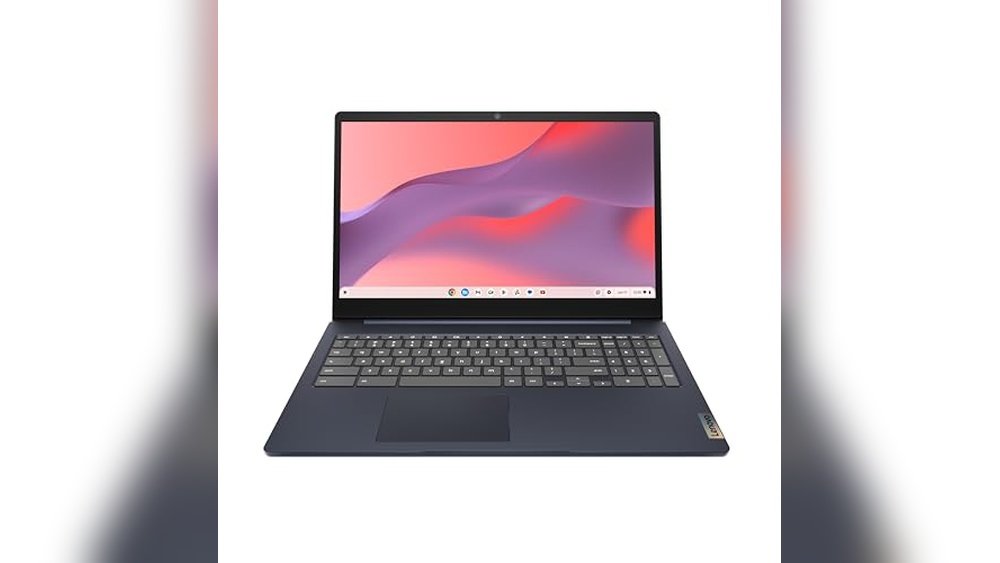
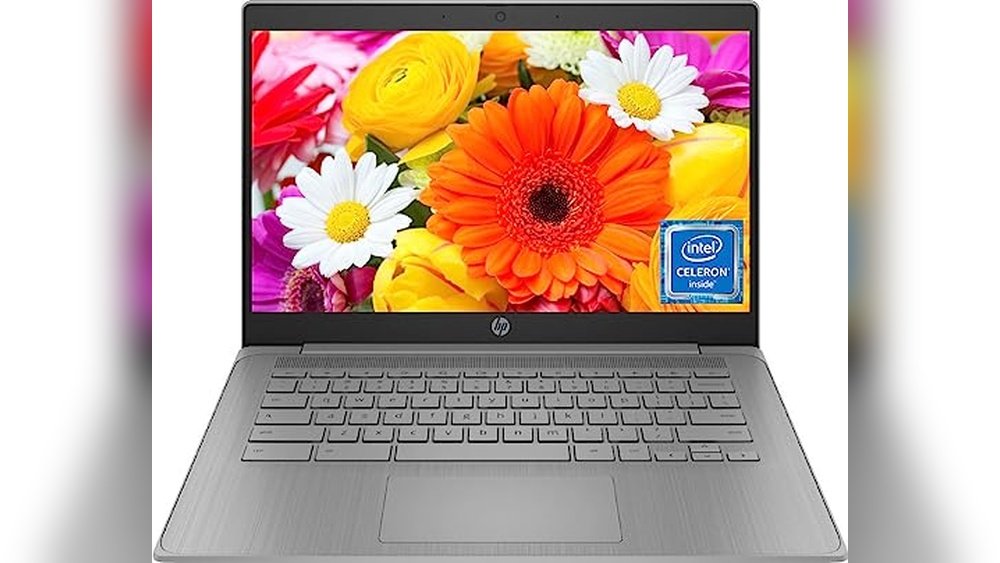
A Chromebook is a lightweight laptop that runs Chrome OS, a system built by Google. It’s designed for web-based work—think Google Docs, Zoom, and YouTube. Most files are stored in the cloud. Chromebooks boot up fast, update automatically, and are easy to use.
Get 1 Free Audiobook To Keep
Start a 30-day free trial and pick any title from 700,000+ audiobooks. Your first book is yours forever, even if you cancel immediately.
Key facts:
- Affordable: Many cost under $300.
- Simple: No complicated menus or settings.
- Safe: Built-in virus protection and security.
Chromebooks are especially popular in schools because they’re easy to set up and manage. Schools can give out Chromebooks to students, and IT staff can control settings and updates from one place. If you lose or break your device, you can log into a new Chromebook and all your files and settings appear—nothing is lost.
That’s a big relief for teachers and students alike.
Another thing: Chromebooks can install Android apps from the Google Play Store. This means you get access to thousands of extra tools and games, from note-taking apps to language learning and even drawing programs. While these aren’t as powerful as full desktop apps, they’re more than enough for basic school tasks.
What Is A Laptop?
“Laptop” usually means a notebook running Windows or macOS. These computers can run all kinds of software, from Word to Photoshop to programming tools. They store files both on the device and in the cloud.
Key facts:
- Flexible: Run almost any program.
- More powerful hardware: Good for gaming, design, coding.
- Variety: Many price points and brands.
Laptops give you much more choice. You can buy a basic Windows laptop for $350 or a top-of-the-line MacBook Pro for over $2,000. There are lightweight models for carrying in your backpack, and heavier models with big screens for working at a desk.
You can connect almost any printer, scanner, or accessory. For students who want to game, edit videos, or run advanced science or design software, laptops are the only real option.
One thing many students miss: most universities and colleges use specific software that only works on Windows or Mac. If you’re in a field like architecture, engineering, or music production, you’ll need a laptop. Chromebooks just can’t run those heavy-duty programs.
Main Differences: Chromebook Vs Laptop
Let’s get right to the point. Here’s how Chromebooks and laptops compare for student life.
| Feature | Chromebook | Laptop (Windows/macOS) |
|---|---|---|
| Price Range | $150–$500 | $300–$2500+ |
| Speed (Startup) | 8–12 seconds | 20–50 seconds |
| Battery Life | 8–15 hours | 5–12 hours |
| Offline Use | Limited | Full (most apps) |
| Software | Web apps, Android apps | Full desktop apps |
| Storage | 32–128GB (cloud-focused) | 256GB–2TB (local storage) |
| Security | Very high (automatic updates) | Good (needs antivirus) |
| Maintenance | Almost none | Needs updates, cleanup |
| Best For | Web tasks, note-taking, classwork | Gaming, design, coding, heavy apps |
Stat: According to IDC, Chromebooks made up 72% of all school device shipments in 2022.
It’s worth noting that Chromebooks often have smaller screens (11 to 13 inches) compared to laptops, which range from 13 to 17 inches. This makes Chromebooks easier to carry but can feel cramped if you often multitask or need multiple windows open.
Laptops give more options for screen size, keyboard comfort, and even touchscreens on higher-end models.
Chromebook: Pros, Cons, And Real-world Use
Pros
- Affordable: Most models cost less than $400.
- Fast startup: Turn on in seconds.
- Long battery: Many last over 10 hours.
- Simple interface: Easy for beginners.
- Very secure: Google’s automatic updates protect you.
- Lightweight: Easy to carry between classes.
One less obvious benefit: Chromebooks rarely slow down over time. Since they don’t install lots of extra programs, they stay as fast as day one even after years of use. For students who hate troubleshooting or calling tech support, that’s a big win. Also, Chromebooks don’t get viruses in the way Windows machines sometimes do. The system is “sandboxed,” which means each app is isolated and can’t mess up the rest of your computer.
Cons
- Offline limits: Some apps need internet.
- Low storage: Not much space for big files.
- Fewer advanced apps: Can’t run full Photoshop, advanced games, or heavy software.
- Printer/software issues: Some devices and programs may not work.
Another downside: while Google has improved offline use, it’s easy to forget to enable offline mode for Google Docs or Gmail before you lose internet. If you’re on a plane or in a building with no Wi-Fi, you could get stuck without your notes. Also, if you need to print a lot, you may find Chromebooks less flexible, especially with older printers that don’t support Google’s system.
Real Student Experiences
- High school students: “I finish essays and check grades on my Chromebook. It’s light and always charged.”
- University art major: “I switched to a laptop because I need Adobe Creative Suite. Chromebooks can’t run it.”
Some students mention how Chromebooks are almost “disposable”—if one breaks or is lost, you can just log in on another and pick up where you left off. For families or schools with tight budgets, this adds peace of mind.
Pro tip: If your school uses Google Classroom or Canvas, a Chromebook works perfectly.
Laptop (windows/macos): Pros, Cons, And Real-world Use
Pros
- Full software: Can run Word, Excel, Photoshop, coding tools, and more.
- Offline work: All programs work without internet.
- High storage: Store videos, music, large files.
- Better for creative work: Great for design, video editing, and STEM tasks.
- Gaming: Only laptops can run PC games smoothly.
Laptops also let you upgrade memory or storage in many models, which can extend their useful life. If you find your laptop is slowing down after a few years, you can often add more RAM or swap in a bigger drive.
This is something Chromebooks almost never allow.
Cons
- Expensive: Entry-level models start around $400, high-end over $1500.
- Heavier: Usually bigger and heavier than Chromebooks.
- Needs maintenance: Regular updates, antivirus, and cleaning.
- Shorter battery: Many last 4–8 hours, less than Chromebooks.
Laptops also get hot if you use them on your lap for a long time, especially during gaming or video editing. They can slow down if you install too many programs or forget to update. Some students get frustrated by constant system updates or annoying pop-ups from antivirus programs.
Real Student Experiences
- Engineering major: “I need Windows for MATLAB and 3D modeling. Chromebooks just don’t have the power.”
- College freshman: “My old laptop got a virus. I miss how stress-free my high school Chromebook was.”
A common surprise for new college students: some campus Wi-Fi networks are tricky, and Windows or Mac laptops can connect more easily, especially if you need to install security software required by your university.
Pro tip: If you want to play games or study design, choose a laptop.
Key Decision Factors For Students
Every student is different. Here’s what you should think about before buying.
1. Budget
- Tight budget: Chromebooks are cheaper and easy to replace.
- More to spend: Laptops offer more features but cost more.
A hidden cost: Many students forget about accessories like a good backpack, a mouse, or a USB hub. Chromebooks use USB-C charging, which is often cheaper to replace if lost or broken compared to some laptop chargers.
2. Your Major Or Study Field
- Humanities, social studies, basic science: Chromebooks are usually enough.
- Engineering, art, design, media, programming: Choose a laptop for advanced apps.
Some majors have “hidden” tech needs. For example, if you plan to take statistics or economics, you may need to use SPSS or Stata, which don’t run on Chromebooks. Always check with your department.
3. Software Needs
- Web-based tools only: Chromebook is fine.
- Desktop programs (like full Microsoft Office, Adobe, AutoCAD): Get a laptop.
Remember, even if your school uses Google Docs, you may need to use Word for final formatting or group projects with students who use Windows or Mac.
4. Internet Access
- Always online: Chromebook works well.
- Poor or unstable Wi-Fi: Laptop is safer.
If you live in a rural area, travel often, or just want to work in places with no Wi-Fi, a laptop’s offline power will be less stressful.
5. Portability
- Carry all day: Chromebooks are lighter.
- Need power/performance: Laptops can be heavier but faster.
If you have a long commute or walk around campus, a lighter device matters more than you think. Your shoulders will thank you.
6. Battery Life
- Long class days: Chromebooks last longer.
- Plug nearby: Laptop is okay.
For students who spend long hours in libraries or study lounges, battery life becomes a top priority. Some lecture halls have very few outlets.
7. Security And Maintenance
- Don’t want hassle: Chromebook is almost zero-maintenance.
- Comfortable with updates/antivirus: Laptop is fine.
Chromebooks are especially good for younger students who might accidentally click on risky links. Parents and teachers worry less about viruses.
Use Cases: Who Should Buy What?
Let’s match devices to student needs.
Best For Elementary And Middle School
- Chromebook
- Simple, safe, and hard to break.
- Most schools use Google accounts.
Teachers love that they can “wipe” a Chromebook and hand it to a new student in minutes.
Best For High School
- Chromebook: For basic tasks, essays, research.
- Laptop: For advanced classes (coding, design, video editing).
For students in robotics, yearbook, or video production clubs, a laptop is almost always needed.
Best For College/university
- Laptop: For majors needing heavy software (engineering, art, programming).
- Chromebook: For general studies, writing, and web research.
Some colleges offer free or discounted software (like Microsoft Office) for students—check before you buy.
Best For Remote Learning
- Chromebook: Fast to set up, works well with Zoom, Google Meet, and Classroom.
- Laptop: Needed if remote work means using special software.
Chromebooks are especially easy for parents to set up for younger kids, with fewer distractions and simple parental controls.
Pros And Cons Table: Quick Reference
Here’s a summary at a glance.
| Chromebook | Laptop | |
|---|---|---|
| Pros |
|
|
| Cons |
|
|
Chromebook Vs Laptop: Myths Vs Facts
Many students hear the wrong info. Let’s clear it up.
| Myth | Fact |
|---|---|
| Chromebooks can’t work offline | Many apps (Google Docs, Gmail) work offline with setup |
| Laptops are always faster | Chromebooks boot quicker and run smoother if you only use web apps |
| Chromebooks can’t print | Most modern printers work with Chromebooks using Google Cloud Print |
| Laptops are less secure | Both can be secure, but Chromebooks auto-update and don’t need antivirus |
A detail many overlook: Chromebooks are updated in the background and reboot quickly, so you’re rarely interrupted. With Windows, updates can sometimes take 20 minutes and arrive at the worst times (like right before a deadline).

Credit: www.pcworld.com
Choosing: Practical Advice For Students And Parents
Step-by-step: How To Choose
- List Your Needs: Make a list of apps and tasks you’ll do.
- Check School Requirements: Some schools demand a specific device.
- Compare Devices: Try a Chromebook and a laptop at a store.
- Think About the Future: Will your needs change next year?
- Set Your Budget: Don’t forget extras like cases, mice, or cloud storage.
Some schools loan devices or have a BYOD (bring your own device) policy—always check before buying. Also, check for student discounts or bundles (like free headphones or extra warranty).
Mistakes To Avoid
- Buying too much: Don’t pay $1000+ if you only browse and write essays.
- Ignoring school software: Some schools require specific programs (Windows-only or Mac-only).
- Skipping battery checks: A device that dies after 4 hours will frustrate you.
- Not testing typing: Some keyboards are uncomfortable. Try before you buy.
Another common mistake: buying a device that’s too big. A 17-inch laptop looks impressive but is heavy to carry and hard to fit on a small desk.
Pro Tips
- Chromebooks can install Android apps from Google Play—great for simple games and tools.
- Windows laptops run more programs, but require antivirus and regular updates.
- Check the update support period. Chromebooks get updates for 6–8 years, then stop.
- You can use Microsoft Office online for free on both Chromebooks and laptops.
If you’re on a tight budget, consider buying a refurbished device from a trusted seller. Many look and work like new, for less money.
Real-world Scenarios
Scenario 1: The Budget-conscious High Schooler
- Only needs to write essays, do research, and join Zoom classes.
- Best pick: Chromebook under $300. Lightweight and lasts all day.
A real bonus: if your Chromebook breaks, you can usually get back to work on another device with just your Google login.
Scenario 2: The Engineering Student
- Needs AutoCAD, MATLAB, and heavy apps.
- Best pick: Windows laptop with at least 8GB RAM and i5/i7 processor.
Don’t forget to check if your laptop supports the latest Windows version required by your department, and look for student discounts on software.
Scenario 3: The Creative Arts Student
- Uses Photoshop, video editing, and large files.
- Best pick: MacBook Air or high-end Windows laptop.
A MacBook is often preferred in arts and media because of its color-accurate screen and high-quality build.
Scenario 4: The On-the-go Commuter
- Spends hours between classes and libraries.
- Best pick: Lightweight Chromebook with 12+ hour battery.
Look for models with sturdy hinges and spill-resistant keyboards if you’re always on the move.
Scenario 5: The Gamer
- Wants to play PC games after class.
- Best pick: Windows laptop with dedicated graphics card.
A gaming laptop is heavier but lets you play new games and also handle video editing or 3D modeling if you need it.

Credit: www.wired.com
Chromebook Vs Laptop: Which Is Better For You?
When To Choose A Chromebook
- Your school uses Google apps.
- You want simple, reliable, and secure.
- You have a limited budget.
- You mostly use the web.
Chromebooks are also great for test-taking. Many online exam systems work better (and more securely) on Chrome OS.
When To Choose A Laptop
- You need to install special programs.
- You want to edit photos/videos or play games.
- You need lots of storage.
- You work offline often.
If you plan to keep your device for many years, remember that a laptop can usually be upgraded or repaired more easily.
Key takeaway: Chromebooks are great for most students—especially for web-based learning. Laptops win if you need serious power, advanced software, or are in a creative/STEM major.
Takeaway: For most students, a Chromebook is the affordable, simple choice. Choose a laptop only if your studies demand advanced programs or gaming.
Where To Find More Info
For deeper research, check Wikipedia’s Chromebook guide for technical details and history.

Credit: www.wired.com
Frequently Asked Questions
What’s The Main Difference Between A Chromebook And A Laptop?
A Chromebook runs Chrome OS and is best for web-based tasks. A laptop (Windows/Mac) runs more programs, works better offline, and has higher hardware specs.
Can I Use Microsoft Office On A Chromebook?
Yes, you can use Microsoft Office Online (Word, Excel, PowerPoint) on Chromebooks through the web. But advanced features need a Windows or Mac laptop.
Are Chromebooks Good For Gaming?
No. Chromebooks can run simple Android games, but not most PC games. For gaming, a Windows laptop is best.
Do Chromebooks Work Without Internet?
Some apps (like Google Docs and Gmail) work offline if set up in advance. Most features need internet, though.
Which Lasts Longer, A Chromebook Or A Laptop?
Chromebooks often get updates for 6–8 years and have fewer parts to break. Laptops can last longer physically, but need more maintenance and software care.
—
Whether you’re shopping for your first student device or upgrading for college, the right choice depends on your budget, study field, and daily needs. Take the time to match your device to your real-world tasks—your future self will thank you.